
Introduction
Installing 3 Patti Pearl on Android is a separate job from downloading the package. At this stage the file is already on the phone, and your focus shifts to permissions, storage headroom, installer prompts, and a stable first launch. Pakistan users often meet skin-specific menus on Samsung, Xiaomi, Infinix, Tecno, and Realme devices, so the same idea — allow one trusted installer — can appear under slightly different labels.
This page does not teach card rankings or bonus streaks. It explains how to move from a complete APK to an app icon that opens without panic. It also explains why mod packages, unlocker APKs, and “unlimited chips” installers are outside a responsible setup path. If install fails, the repair order is usually boring: integrity, storage, conflicts, then a careful retry — not a hunt for a magical alternate package.
Treat unknown-app permission as a temporary tool. Allow it for the one browser or files app that holds your APK, complete the install, then tighten the setting again. Leaving every installer enabled is convenient in the short term and careless over months of Android use.
Before You Install
Confirm the download finished. A truncated file produces parsing errors that look like mysterious Android bugs. Free substantial storage — not a symbolic few megabytes — because verification and unpacking need room. Charge the phone enough that it will not power off mid-prompt. Decide which app will open the APK so you know exactly which permission toggle to use.
- Verify the APK is complete in your file manager
- Free about 1–2 GB before you tap Install
- Close heavy background apps that stress low-RAM phones
- Choose one installer app you trust (Files or Chrome, for example)
- Read system warnings instead of tapping through them blind
Install Steps
Open the APK from Downloads or your file manager. When Android asks whether that source may install packages, allow only that source. Confirm the install prompt once and wait. Spamming the button does not accelerate verification. When the system reports success, open 3 Patti Pearl once on Wi‑Fi so first-run assets and session setup have a stable path.
- Tap the APK to start the system installer
- Allow install permission for that one source app only
- Confirm Install and wait for completion
- Open the app once on stable Wi‑Fi
- Turn off unused unknown-app permissions afterward
- Move to login or registration rather than living forever as Guest if you care about progress
| Symptom | Likely cause | First fix |
|---|---|---|
| Parsing error | Incomplete or corrupt APK | Re-download on Wi‑Fi from the same trusted path |
| App not installed | Signature or old package conflict | Remove the older build if you still control the account |
| Blocked by Play Protect | Unrecognized package | Read the warning; decide using source trust |
| Stuck verifying | Low storage or slow I/O | Free space, reboot, retry once |
| Install button does nothing | Permission not granted to the opener app | Check Install unknown apps for that exact app |
Permissions Hygiene
Install unknown apps is not a lifestyle setting. After success, return to Settings and disable the installer you no longer need. Separately, when the app first launches, read the permission list Android shows. Grant what is required for normal use; be skeptical of prompts that appear unrelated to a card lobby. You do not need to install companion “optimizer” APKs that claim to repair Teen Patti installs.
Shared or rooted phones raise the stakes. If multiple people use the device, prefer not to leave a logged-in entertainment account sitting unlocked. Installation hygiene and account hygiene travel together: a clean package on a chaotic shared profile is only half a solution.
Android Skins Common in Pakistan
OEM skins relocate menus. On many phones you will find Special app access → Install unknown apps, then a list of browsers and file managers. If the toggle is hard to find, use Settings search for “unknown” or “install unknown”. Samsung, Xiaomi, Infinix, Tecno, and Realme wording differs, but the rule stays constant: allow one path, install, revoke.
- Search Settings if the menu path differs from a generic tutorial screenshot
- Allow Files or Chrome for this install — not every app in the list
- Free WhatsApp media when storage warnings appear during verifying
- Avoid installing from random Telegram document dumps you cannot evaluate
- After success, confirm the app icon opens to splash or lobby
Reading Play Protect Without Panic
Play Protect warnings deserve a careful pause, not an automatic bypass ritual and not an automatic rage uninstall of your entire phone. Ask whether you trust the source that produced the file. If the package arrived from a chaotic redirect chain, deletion is reasonable. If you knowingly fetched a standard package from a source you accept, read the warning text and decide deliberately. Blind habits in either direction are how people either brick their patience or ignore real risk.
First Launch Checklist
A good first launch reaches splash or lobby without crashing loops. From there, choose Logon or complete registration soon if progress matters. Guest mode is fine for a quick look and weak for long-term continuity. Keep the first open on Wi‑Fi so asset fetches and login calls do not collide with a flaky handoff from Wi‑Fi to 4G.
| First-launch check | Pass looks like | If it fails |
|---|---|---|
| App opens | Splash or lobby appears | Reboot, free storage, retry once |
| Network | Menus load without endless spinners | Switch to steadier Wi‑Fi |
| Account path | Logon or Bind Mail reachable | Do not invent a second Guest as a “fix” |
| Permission clutter | Only needed installers enabled | Revoke unused unknown-app toggles |
Skip any installer branded as hack, unlocker, or unlimited chips. Those claims are red flags, not advanced features.
Common Mistakes During Install
Install-stage mistakes differ from download-stage mistakes. Here people keep tapping Install on a corrupt file, stack two conflicting signatures, leave every unknown-app toggle on, or “fix” a failure by grabbing a mod APK from a chat. Another frequent error is clearing data immediately after a partial install while still on Guest, then believing the game deleted itself maliciously.
- Do not replace a failed install with a hack-branded package
- Do not ignore storage warnings and blame the APK brand instead
- Do not keep unknown-app permission enabled for every store and messenger
- Do not create three Guest profiles while troubleshooting one conflict
- Do not chase private-table myths during setup — your version’s lobby is the map
After a Successful Install
When the icon opens cleanly, your next jobs are account continuity and basic rules — not high-pressure tables. Confirm you can reach Logon, consider Bind Mail early, and keep session length short while you learn menus. Installation success is infrastructure. It is not evidence that outcomes at the cards will be fixed, and no responsible checklist should pretend otherwise.
Storage Conflicts That Mimic Install Failure
Install failures on crowded phones often trace to invisible pressure rather than a broken package. System updates may reserve space silently. WhatsApp backups and camera rolls can fill the last gigabyte between your download and your install tap. Before you declare the APK corrupt, open storage settings and look at app-level usage, not only the headline free-space number. Clearing cache from heavy social apps is usually safer than deleting Pearl before it ever opened.
If you previously installed a lookalike Teen Patti clone with a similar icon, uninstall that clone first when you no longer need it. Two packages fighting for attention create signature confusion and wrong-icon launches. One primary card app per device is a practical install rule, not a marketing preference.
Post-Install Verification Steps
- Confirm the app icon matches the package you intended
- Open once on Wi‑Fi and wait through splash without force-closing
- Check that Settings shows a reasonable install date and version
- Revoke unknown-app permission from the installer you no longer need
- Delete the installer APK from Downloads after success if you want a cleaner folder
Verification takes two minutes and prevents days of chasing the wrong problem. If splash never completes, note whether other online apps work on the same network before you hunt for a modded reinstall. Network and storage remain the first suspects even after a technically successful install.
| Post-install signal | Healthy sign | Investigate if |
|---|---|---|
| Icon present | Opens to splash or lobby | Icon missing or wrong app opens |
| Version visible | Matches your download notes | Wild mismatch with source claim |
| Permissions | Only needed installers enabled | Every app can sideload packages |
| Storage | Still 500 MB+ free | Warnings return immediately |
Package Conflict Cleanup
“App not installed” after a previous Pearl build often means signature or package conflict. If you still control the account, uninstall the older build carefully, then install the new package once. If you were Guest-only, expect local progress risk — which is why binding accounts before major reinstalls matters. Do not stack three conflicting builds hoping one will overwrite magic into the lobby.
After removal, reboot once on low-storage phones before the next install attempt. Leftover caches are not always the villain, but a clean reboot reduces odd verifying stalls. Then open only the APK you verified as complete. If Play Protect or the system blocks the package, read the text slowly; deciding under adrenaline leads to either unsafe bypass habits or unnecessary deletion of a file you still need.
| Conflict clue | Meaning | Next action |
|---|---|---|
| App not installed with prior icon present | Likely signature clash | Remove old build if account is safe |
| Install succeeds but old shortcut acts odd | Launcher cache lag | Reboot and open the new icon |
| Two similarly named APKs | Human confusion risk | Delete extras before tapping |
Storage Reality on Budget Phones
Pakistan’s popular budget devices often carry large WhatsApp media directories. Android may report enough space for the APK yet fail during unpack when cache needs a burst of free room. Freeing 1–2 GB is not superstition; it is margin. Move photos to a computer or cloud you trust, clear trash in the files app, and remove unused games before another verifying loop.
SD card quirks also appear: some users download to external storage while the installer expects internal paths. If open-from-Downloads fails strangely, copy the APK to internal storage and try again from there. Keep the steps boring and sequential. Fancy “install booster” apps are unnecessary and often shady.
- Check free internal storage, not only total device capacity
- Clear Trash/Bin folders that still hold large videos
- Copy the APK to internal storage if external open fails
- Retry install once after reboot
- Only then consider a fresh trusted re-download
Post-Install Hardening
Success is not the moment to relax every security toggle. Disable the unknown-app permission for the browser or files app you used. Review whether any second installer was enabled by mistake. Open 3 Patti Pearl, confirm splash or lobby, and proceed to account continuity. Resist the celebration impulse to join the loudest table immediately; infrastructure first, pacing second.
- Revoke unused install permissions
- Confirm the correct app icon opens
- Prefer Wi‑Fi for the first lobby load
- Plan Logon or Bind Mail next
- Skip mod “enhancer” packages entirely
Install completion is setup success only. It never certifies winnings or unlocks dishonest shortcuts.
Verify the Open Path
If tapping the APK does nothing, confirm the file association. Open your files app, locate the package, and use the Open with option for the package installer. On some skins, Downloads inside Chrome and Downloads inside Files are different views of the same storage — pick the view that actually shows the finished size. When the installer sheet appears, read the app name carefully so you are not confirming an unrelated package that snuck in through a messy redirect earlier.
After installation, do not immediately download a second “helper” package. Helpers that promise faster lobbies or chip repairs are a frequent malware costume. Your next legitimate screens are Pearl’s own splash, Logon, and account binding. Keep the chain short and standard.
- Confirm package name before pressing Install
- Avoid parallel installs of unrelated APKs
- Reboot if the new icon does not appear in the drawer
- Document any system warning text if you need Support later
Screenshots
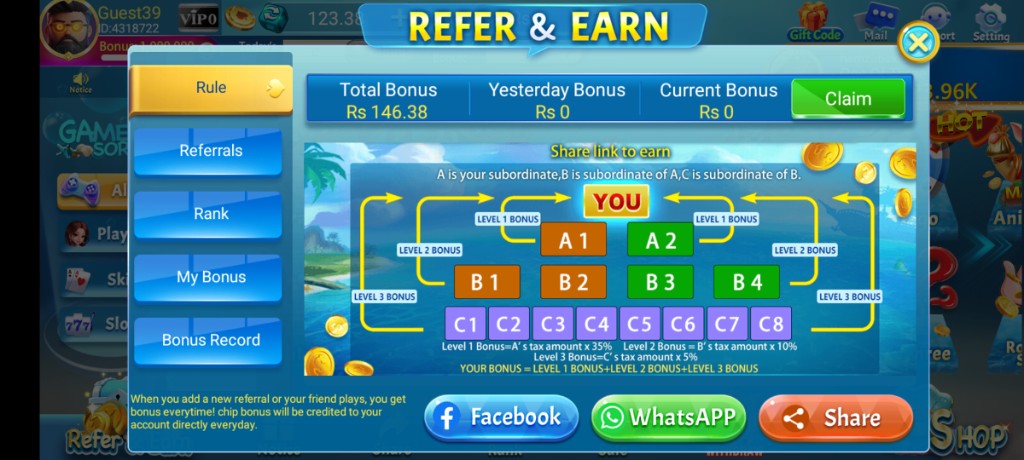
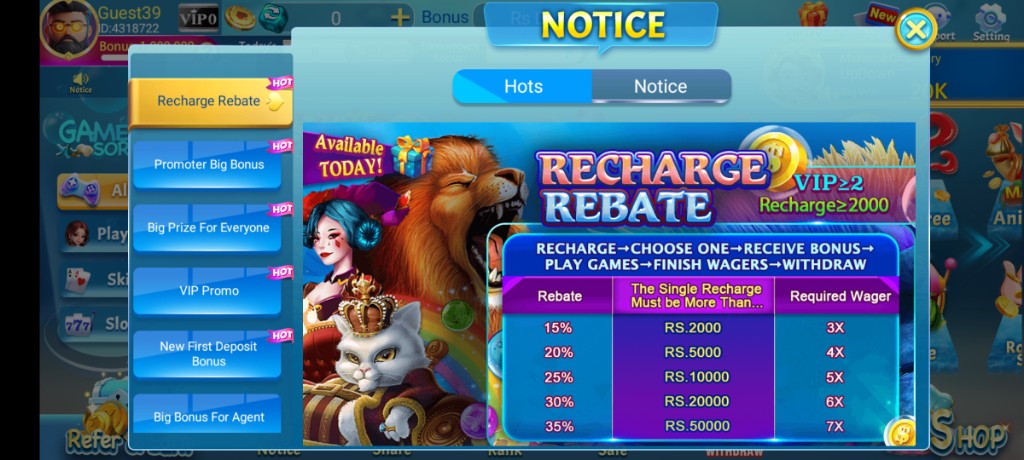
These are real app UI screenshots to make each step easier to follow. Balances and events can change, so always match what you see in your installed version.
Frequently Asked Questions
Where do I allow unknown apps on Android?
Usually under Settings → Apps → Special app access → Install unknown apps, then allow only the browser or file manager you trust.
Why does install get stuck on verifying?
Low storage and slow storage I/O are common. Free 1–2 GB, reboot, and try again.
What if Play Protect warns me?
Read the warning carefully. Decide based on source trust. Blind bypass habits are risky.
Should I keep unknown sources on forever?
No. Turn unused install permissions off after a successful install.
Can I install from Telegram or WhatsApp forwards?
Only if you fully trust the source. Random chat APKs are a common malware path.
What comes after install success?
Open the app on Wi‑Fi, complete login or registration, then learn basic rules before bigger tables.
Conclusion
When the splash or lobby appears, move on to login or registration.
Next step: 3 Patti Pearl Login for Beginners on Android.