
Read the Installer Message Literally
Install failed is a headline. The Android installer often adds a more specific reason: storage, package conflict, parse error, blocked by Play Protect, or a permission problem for installing unknown apps. Read that reason before deleting half your photo gallery in panic. Different errors demand different cures.
If the message disappears quickly, try once more with attention or check whether your file manager logs show a longer string. A photo of the error on another device in the household can help you search accurately later without installing random fix tools.
Do not install so-called APK fixer tools from unknown publishers. They frequently are the malware people meant to avoid.
Storage and Incomplete Files
Insufficient storage remains a classic failure. Android needs free space beyond the raw APK size for unpacking. Clear caches of bulky apps, remove unused downloads, and retry. Incomplete APKs from interrupted transfers also fail with parse-style errors that look scarier than they are.
- Free more space than the APK size alone suggests
- Redownload the package fully on Wi‑Fi if parse errors appear
- Avoid renaming unrelated files to .apk
- Disable downloads pausing mid-file when possible
- Retry install after a reboot if the package manager looks stuck
Download folders filled with half-finished duplicates confuse people into installing the wrong file. Delete obvious partials. Keep one clean candidate.
Unknown Apps Permission Paths
Modern Android versions grant install permission per source, such as your browser or file manager. If install fails immediately with a block, open system settings and allow that specific source temporarily. After a successful install, you can revoke the permission again for hygiene.
Work profiles, parental restrictions, and enterprise management can also block sideloading. If the phone is managed by a school or company policy, you may need a personal device for entertainment installs. Fighting a managed policy with shady bypass apps is a bad trade.
| Block style | What to check | Safe action |
|---|---|---|
| Source not allowed | Browser/file manager install permission | Enable temporarily, then review |
| Play Protect warning | Whether source is trusted | Abort if doubtful; keep if you truly trust |
| Managed device policy | Work profile restrictions | Use an unmanaged personal phone |
| Storage full | Free space across internal storage | Clean and retry |
Package Conflicts and Leftover Installs
An existing app with the same package name but a different signature will refuse an overinstall. Uninstall the old copy first if you intentionally switch sources, understanding that local data may go unless account linking protects progress. Conflicting clone apps can also interfere on some skins.
After uninstall, reboot once before installing the new file. Package manager glitches after rapid uninstall/install cycles are less common than people think, but a reboot is cheap insurance on older devices.
- Uninstall conflicting builds before switching signatures
- Avoid running two clone copies as your main account home
- Reboot after stubborn uninstall/install loops
- Confirm the icon you open is the newly installed package
- Keep login credentials ready after clean installs
Android Version Gaps
Very old Android versions may not meet the minimum the current package targets. Very new betas can also break installers. Check your OS version in settings and compare with published requirements when available. If your OS is unsupported, no amount of re-downloading the same APK will help until you use a compatible build or device.
Parse Errors Without Mysticism
A parse error almost always means the file is damaged, incomplete, or not actually a valid package. It is not a secret region lock message. Redownload, change download browser if one browser corrupts transfers, and stop using extractors that repack APKs for no reason.
SD card installs can add another failure point on devices that move packages oddly. Prefer internal storage for the APK and the app when you have a choice. Cards that disconnect mid-install create chaos that looks like mysterious incompatibility.
- Redownload a fresh file
- Store it on internal storage
- Install through a known file manager
- If parse persists, try a different trusted source once — not ten random ones
- Abandon sources that keep delivering broken files
Play Protect and Warning Dialogs
Play Protect may warn on apps outside the Play Store. A warning is a moment to think, not a boss fight you must win. If you do not trust the source, abort. If you do trust the source and expected a warning, proceed only with that understanding. Blindly disabling Protect permanently for convenience weakens your phone’s broader safety net.
Watch for fake warning overlays from adware that appear during download pages. System dialogs and webpage cartoons are not the same. Learn your phone’s real UI chrome so you are not tricked into installing a second unwanted APK.
| Warning origin | Trust posture | Action |
|---|---|---|
| System Play Protect | Evaluate source carefully | Proceed only if intentional |
| Webpage fake shield | Hostile until proven | Leave the page |
| Third-party antivirus pop | Often upsell | Do not install extras blindly |
| Installer permission dialog | Normal for sideload | Allow only the needed source |
OEM Skin Quirks
Some manufacturer skins add extra steps: security centers, privacy vaults, or auto-start managers that interfere after install even when the installer said success. If install reports success but the icon vanishes or the app cannot launch, check OEM security logs for quarantine actions.
Battery savers that prevent first-run setup can also make a fresh install look broken. Launch once with saver relaxed, finish login, then restore your preferred battery settings with an allowlist entry for the game if needed.
- Check security center quarantine lists
- Allow the game auto-start if the skin requires it for stability
- Disable unauthorized installer blockers during the attempt only
- Update system WebView and core components when crashes follow install
- Keep OEM system updates current when possible
A Clean Post-Failure Protocol
After any failed attempt, do not immediately spray five more APKs into the folder. Identify the error class, perform the matching fix, and try one clean install. If you fail three times with the same error, change one major variable only: source, free space, or OS permission path.
Document the final working path in a note. Future installs and updates get faster when you remember whether your phone needed a specific file manager permission or a reboot step.
Guest Progress Warning
Failed installs sometimes push people into uninstall loops that erase guest progress. Link accounts before experimental reinstall cycles. If you already lost guest progress, no installer setting can invent it back. Use the moment to secure the next account properly.
Browser Downloads Versus File Manager Paths
Some browsers hand the APK to a downloads UI that never actually completed the file. Others scan and quarantine silently. If install failed, open your downloads list and confirm the size is non-trivial. Then open the file from a straightforward file manager rather than through an adware-laden download assistant.
If one browser repeatedly yields broken packages, switch browsers once for the transfer. That is a controlled experiment. Switching through five random download apps from ads is not controlled — it is how extra malware arrives while you chase a single game install.
- Verify the download finished with a plausible size
- Open from a plain file manager
- If needed, retry the transfer in a second reputable browser
- Decline helper apps that want to manage all APKs for you
- Keep only the successful file until the game launches cleanly
Architecture and Compatibility Mismatches
Occasionally a published package targets a device architecture or API level your phone cannot satisfy. The installer may speak in technical shorthand. When repeated clean downloads fail with the same compatibility tone on a very old or very unusual device, accept that you may need a different build or a different phone rather than forcing unsafe converters.
Emulators and unofficial Android environments add another layer of failure. If you are testing on an emulator, treat success there as non-proof for your daily phone. Real-device installs still need their own clean run.
| Clue | Possible meaning | Next move |
|---|---|---|
| App not installed message with conflict | Signature or package clash | Remove old build, reboot, retry |
| App not installed with no detail | Space, parse, or policy | Check space and permission source |
| Repeated parse on every file | Bad mirror set or storage fault | Change source once; test storage health |
| Only fails on emulator | Environment gap | Install on the physical phone |
Pre-Install Device Prep That Prevents Failures
Before you even download, reboot once, free space, and close aggressive cleaners. Charge above a safe battery threshold so the phone does not power off mid-install. Disable accidental taps from bulky cases pressing side keys if that has interrupted you before.
If your device uses multiple users or a work profile, install inside the same profile where you intend to play. Packages installed in the wrong profile look like vanishing apps and generate false failure stories.
- Reboot and free space first
- Charge enough for a complete install
- Pick the correct user profile
- Download only after prep is done
- Install once with attention, not in a rush between chores
Closing Perspective on Install Failures
Install failures are usually mechanical: space, permissions, broken files, conflicts, or policy blocks. Solve the mechanical problem with matching tools. Refuse magical fix APKs. Keep your real credentials offline while you wrestle with the package manager.
When the installer finally succeeds, run a short smoke test and reclaim unused install permissions. The calm after a clean install should feel ordinary. Ordinary is what you want from infrastructure. Save excitement for the cards, not for the package manager.
If installation succeeds but online features fail, shift to network troubleshooting rather than uninstalling again. Wrong checklist, wrong night.
Keep one trusted install path written down so the next update does not restart the whole scavenger hunt. Consistency is how sideloading stays boring — and boring installs are successful installs.
Screenshots
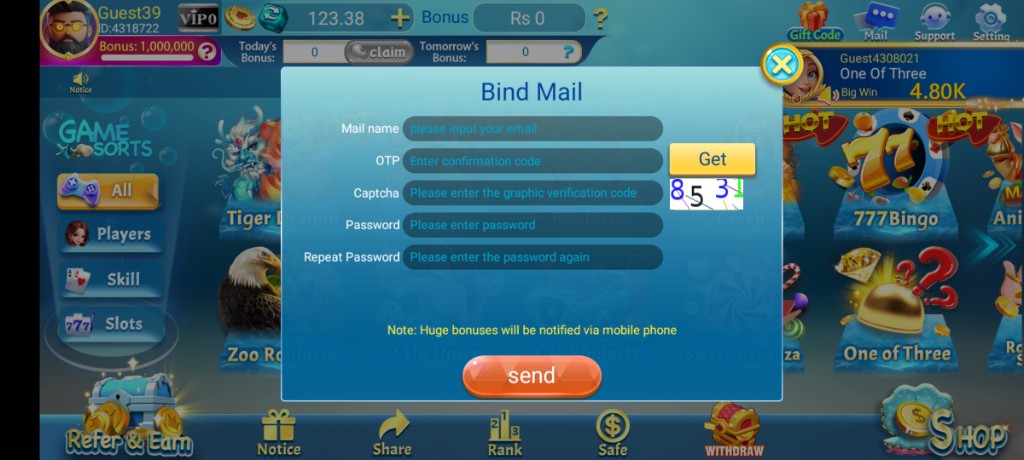
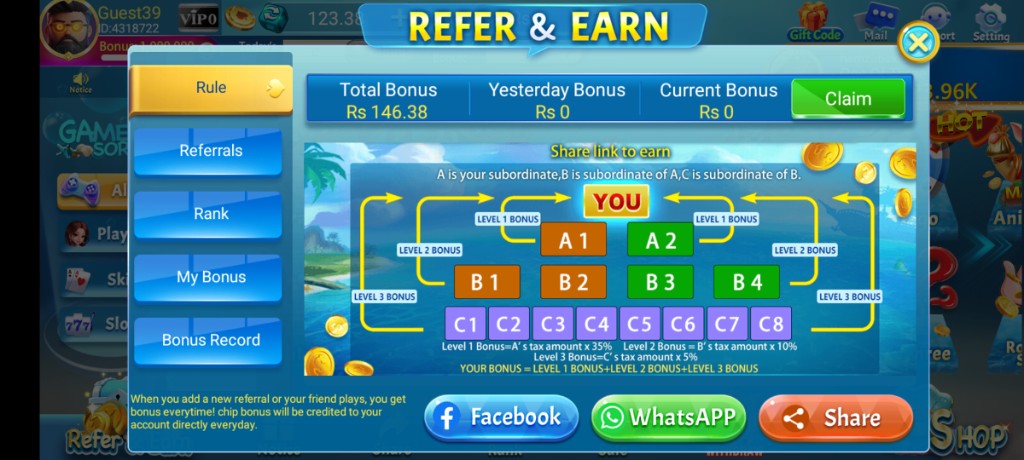
These are real app UI screenshots to make each step easier to follow. Balances and events can change, so always match what you see in your installed version.
Frequently Asked Questions
What causes parsing errors?
Incomplete or corrupt APK files. Re-download on Wi‑Fi.
App not installed message — why?
Old package conflicts or signature mismatch. Remove older builds first when safe.
How much free storage do I need?
More than the APK size. Keep roughly 1–2 GB free for safer installs.
Can SD card installs fail more often?
Internal storage installs are usually more predictable.
Should I use modded installers?
No. Prefer clean builds from sources you can evaluate.
What if install succeeds but app crashes?
Open the not-working and system-requirements pages next.
Conclusion
When install succeeds, follow the normal install page for first-launch habits.
Next step: How to Install 3 Patti Pearl APK on Android.